Skip to content
View in the app

A better way to browse. Learn more.

OKSTAR

A full-screen app on your home screen with push notifications, badges and more.

To install this app on iOS and iPadOS
  1. Tap the Share icon in Safari
  2. Scroll the menu and tap Add to Home Screen.
  3. Tap Add in the top-right corner.
To install this app on Android
  1. Tap the 3-dot menu (⋮) in the top-right corner of the browser.
  2. Tap Add to Home screen or Install app.
  3. Confirm by tapping Install.

Invision Community-Developer Tools 5.0.21

(6 reviews)

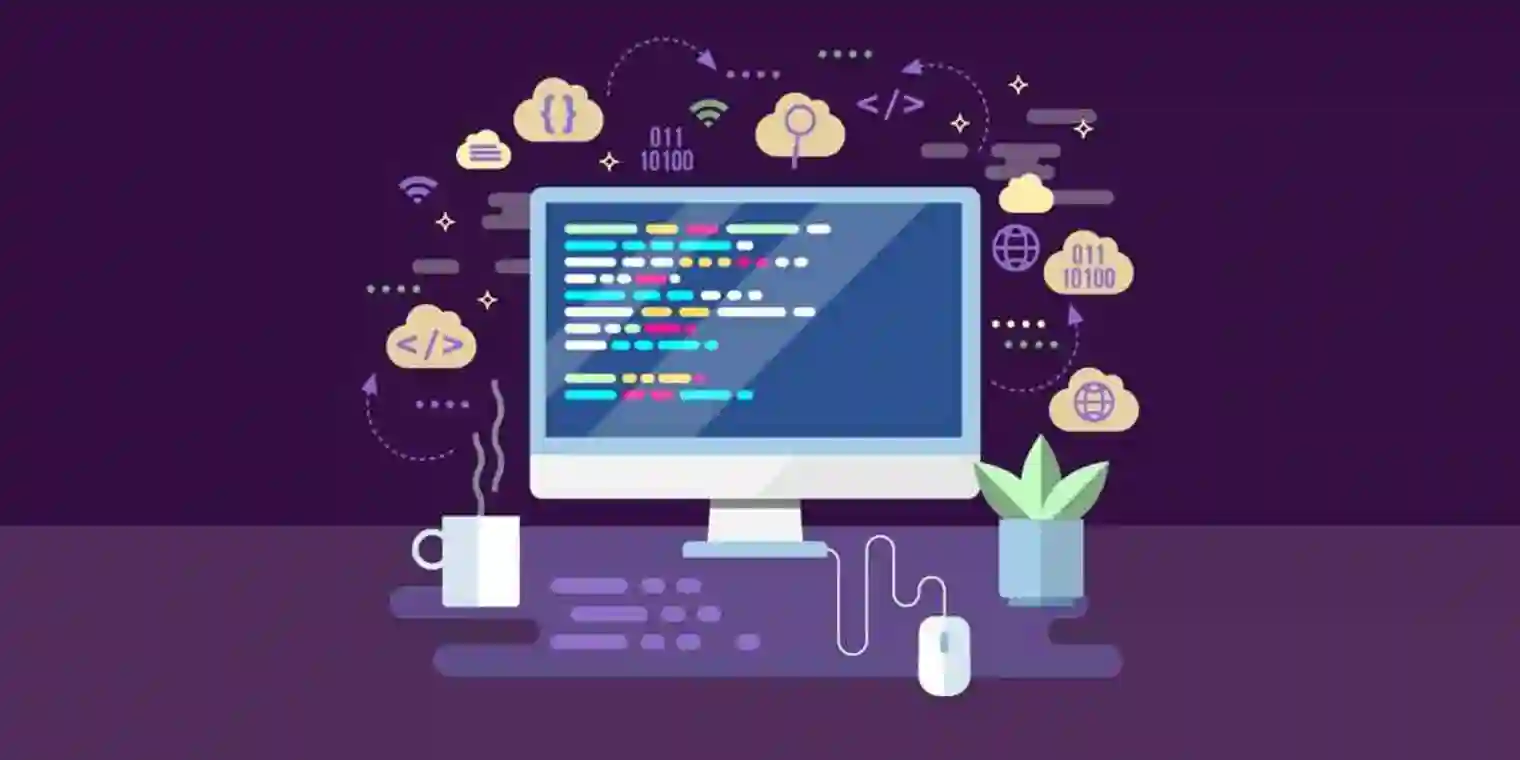
1 Screenshot

User Feedback

Join the conversation

You can post now and register later. If you have an account, sign in now to post with your account.

Guest
  • This will not be shown to other users.

  • Your review Required
    Add a review...


Grabbed this once to get dev mode going on a test board. Does exactly what it says, no extra fluff.


Grabbed this for a dev-mode test setup. Does exactly what it says, no extra hassle. Handy for IPS dev work.


Used once on a test board. Dev mode worked fine. Docs are thin, but it does the job.


Downloaded once for a test board. Gets developer mode going, but setup felt a bit fiddly. Does the job.


Downloaded it twice now for dev mode on test boards. Does exactly what it says, no fuss. Handy little set.


Must up to date dev tools for 5, so far.

Account

Navigation

Search

Search

Configure browser push notifications

Chrome (Android)
  1. Tap the lock icon next to the address bar.
  2. Tap Permissions → Notifications.
  3. Adjust your preference.
Chrome (Desktop)
  1. Click the padlock icon in the address bar.
  2. Select Site settings.
  3. Find Notifications and adjust your preference.