


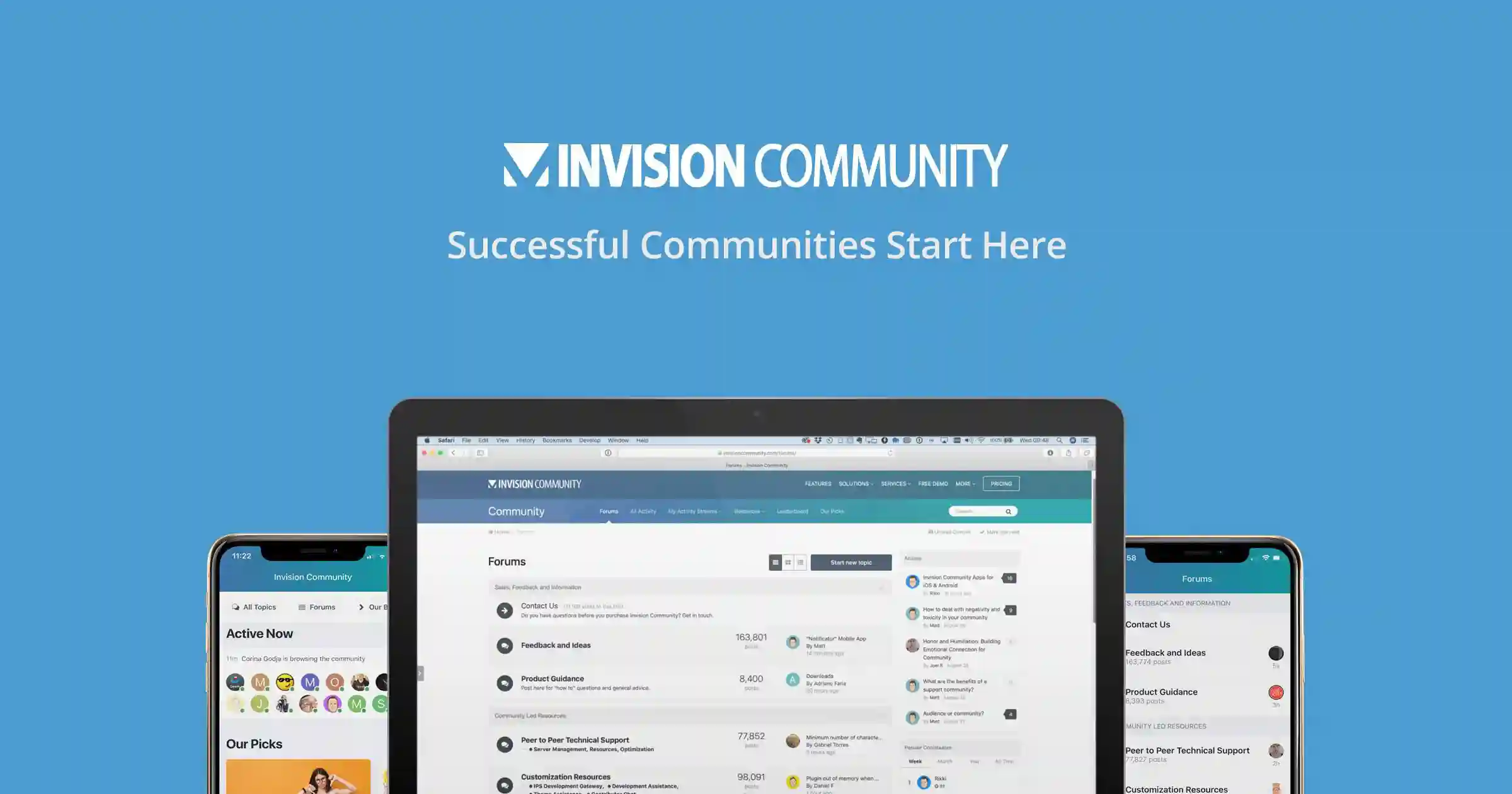


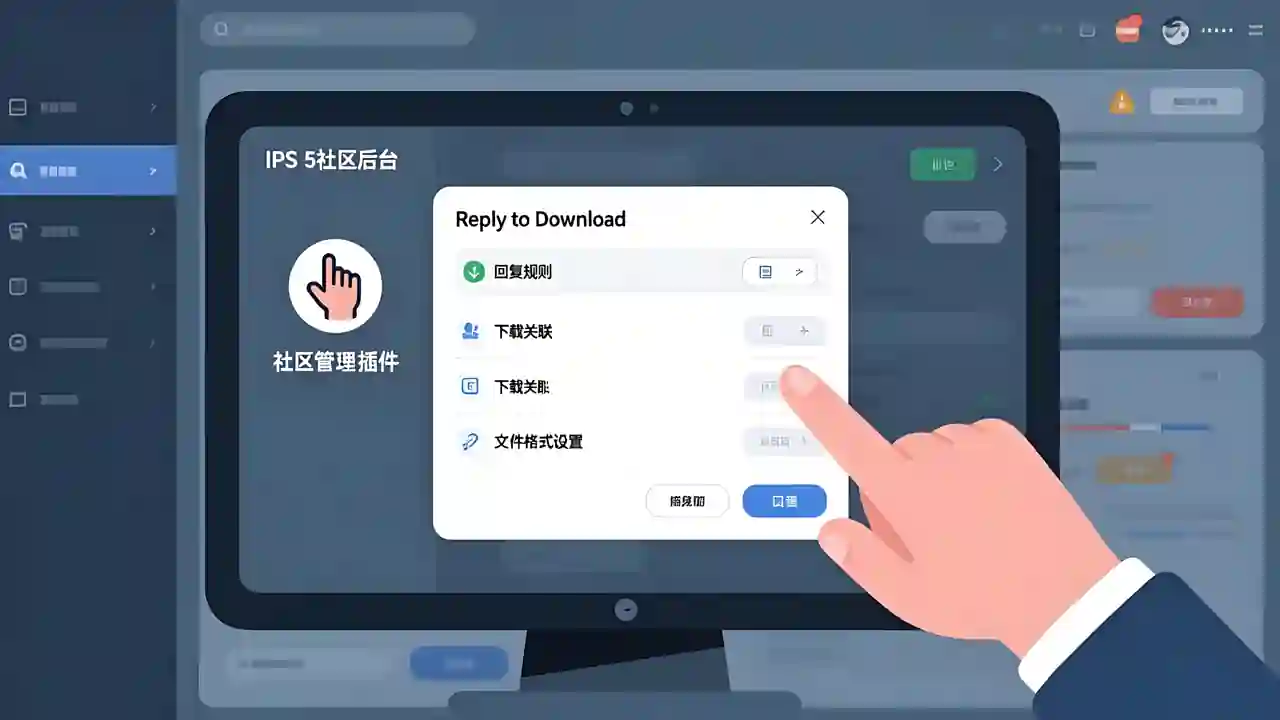
Reply to Download is an interaction-enhancement plugin designed specifically for the IPS 5 (Invision Community) Downloads application. By requiring users to comment, review, or react before downloading, it effectively boosts community engagement, encourages user participation, and helps your downloadable resources receive more valuable feedback.
🔐 Smart Download Restrictions
Flexible control: Enable or disable download restrictions at the category level
Multiple interaction methods: Supports comments, reviews, and reactions as unlock methods
Custom combinations: Require a single interaction type or any combination of multiple types
Per-file enforcement: Each file requires its own interaction, preventing one action from unlocking all downloads
👥 User Group Management
VIP exemptions: Allow specific user groups to download without interaction
Member privileges: Provide unrestricted downloads for paid members or premium user groups
Granular control: Supports exemption settings for multiple user groups simultaneously
🎨 Key Features
📊 Increase Community Engagement
✅ Encourage users to leave genuine feedback
✅ Improve interaction rates on download content
✅ Enhance the quality of resource ratings and reviews
✅ Foster active discussions within the community
🛡️ Prevent Abuse & Free Downloads
✅ Reduce “free-riding” behavior
✅ Filter out low-quality or inactive users
✅ Raise the quality threshold for downloadable resources
✅ Protect the rights and efforts of content creators
⚙️ Flexible Configuration
✅ Independent settings per category
✅ Detailed user group management
✅ Freely selectable interaction methods
✅ Plug-and-play, easy to configure
What's New in Version 5.0.0
Released
No changelog available for this version.
There are no reviews to display.